








Hands-On: uDraw Gametablet for Wii - News
by Daniel Share-Strom , posted on 26 October 2010 / 4,785 Views
With all the hubbub about Nintendo's upcoming 3DS, another upcoming touchpanel for one of their platforms has gone relatively unpublicized. This past Tuesday, I got to check out THQ's uDraw Gametablet for Wii - and all of the announced games - at a preview event in Toronto, and it surprised me quite a bit with its versatility. This is not just a touchscreen.
First, the basics. The one-pound unit is comprised of a 4x6 touchscreen with a docking port for the Wii Remote. It features textured grips on the bottom so it can easily be placed on your lap or a table and used without slipping around. The large, pen-style built-in stylus is pressure sensitive, which means it can detect how hard you are pressing and the game can respond accordingly. Of course, housing the Wiimote means that the tablet has full access to all buttons and motion sensitivity. Interestingly, the device can even tell where the stylus is when you hover the pen a few inches from the surface. These functions were all demonstrated exceptionally well in the three games I got to play.
uDraw Studio

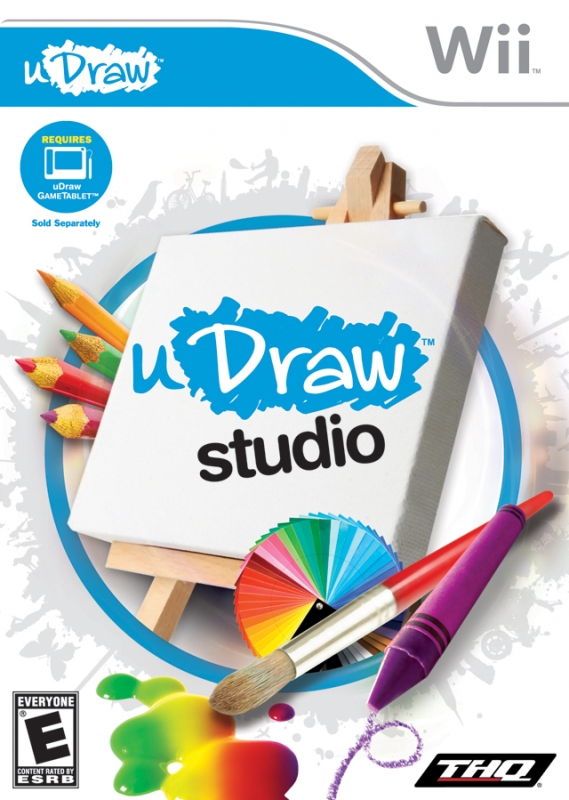
That last function was put to good use in the game uDraw Studio, the title that will come bundled with the hardware when it launches. This game is kind of like Photoshop, in that it is less of a game and more of an artist's canvas. Drawing is, of course, handled by moving the stylus along the touchpad, but there is more to it than that. The harder you press against the screen, the thicker the line you'll draw. One thing that budding e-artists will be able to appreciate is how, since the Gametablet can tell where the stylus is even when not touching the surface, you can still see where your hand is when staring at the TV and not drawing. There were also the requisite artistic tools, such as shapes, stamps, and color gradients which could be selected by tapping an area on the side of the screen. You can set up to eight colours on a wheel where they can be tapped later for quicker access. There are also an assortment of more basic tools for the younger audience, such as a line filled with the basic colors like 'red', 'blue', 'yellow', and 'green'.

Several different canvases are available in uDraw Studio. For instance, you can 'paint' on a brick wall, which adds a grainy, textured effect. There are also different backgrounds, such as a quiet park, to help put players in specific moods. A final interesting nugget is that this is the first third-party game Nintendo has given a license to save data on an SD card, meaning you can save your pictures in either JPG or PNG format, put them on your computer, and send them to your friends and family.
See just what it's possible to create using this game here:
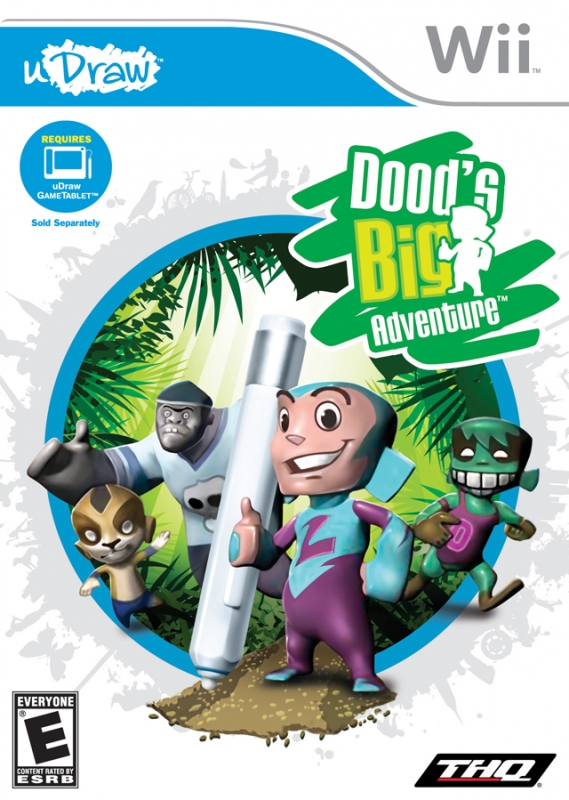
Dood's Big Adventure

The next title I got to check out was decidedly more 'gamey'. In Dood's Big Adventure, our hero (the titular Dood) goes on a quest to take out a battalion of inky enemies. Before you do that, however, you'll want to jump into the game's editing mode. Here, you can customize your Dood, as well as various enemies and environmental objects, by colouring on them and placing features like eyes and noses. Once I was done creating my devil-red Dood with upside-down eyes and a stuck-out tongue, it was time to check out the four main gameplay modes. My ego got a serious boost when I was informed that I scored higher in these games than anyone who'd played the day before!
Dood controls differently in each mode, and oddly enough, each one felt like it deliberately adapted the playstyle of another popular platform/puzzle series. Pen Panic is your standard platformer. You use the stylus to point Dood in the direction you want him to move and point above him to jump. You can also draw trampolines for him to jump on, which are necessary for solving certain puzzles or clearing certain gaps. Enemies are defeating by touching them with the stylus, which splatters them with ink and makes them dizzy so that Dood can run up and kick them. This mode felt very reminiscent of the classic Mario sidescrollers, albeit with a satisfying 'jungle' art style.

The next mode, called Roly Poly, turns Dood into a ball. Combining elements of Super Monkey Ball and Sonic the Hedgehog, you tilt the pad left or right to have him roll in that direction, and the basic objective is to roll over enemies and build up as much speed as possible - heck, there was even a loop-de-loop! The tilt controls here felt just a touch finicky, often making major adjustments to Dood's speed when I only moved a little bit, so hopefully that can get ironed out before release.
Bubble Trouble was likened to the classic board game, Operation! It’s an apt comparison, as you must use the stylus to move a bubble-encased Dood through obstacle-laden environments, without touching the sides. In addition to the maze-like layout of the levels, there are plenty of enemies and conveniently placed spikes waiting to burst your bubble. Personally, I always get the electric shock when I play Operation, so I didn’t expect to fare too well here (indeed, it was the only mode I actually died in). Luckily, each game mode gives you an infinite amount of lives, so the only drawback to dying is losing some points.
The final mode, Fan Frenzy, can most easily be compared to the sections of the Super Mario Galaxy games where Mario is trapped in a bubble and you must blow him around. Here, Dood is in a blimp, and you must use the stylus to position a fan so it pushes him in the direction you want to go. Mercifully, you can touch the sides in this mode, and you can control how hard the fan blows by how hard you press the stylus down. Despite being able to touch the sides, this mode was quite a bit more difficult than Bubble Trouble thanks to the loss of direct control over Dood.

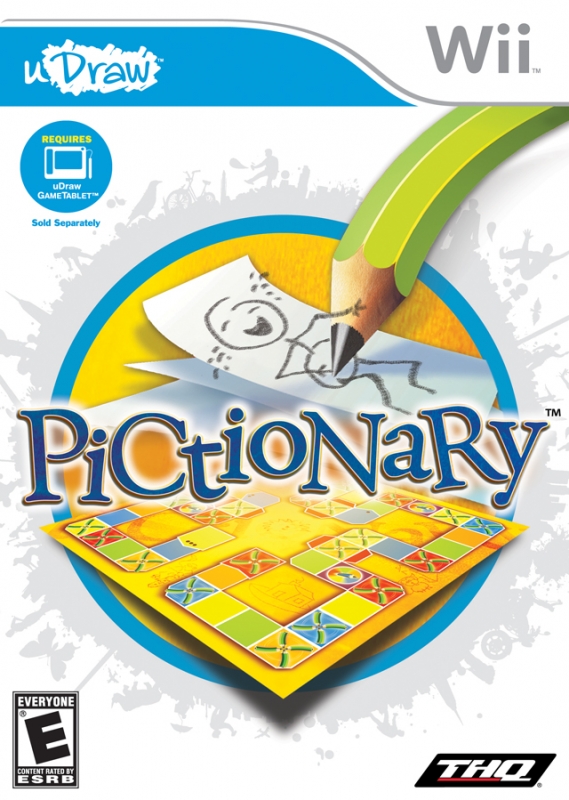
Pictionary
What better way to showcase your new touch-screen on the family-friendly Wii than with a rendition of the classic drawing game, Pictionary? To celebrate the 25th anniversary of the game, Mattel and THQ have partnered to bring an updated version to Wii and the uDraw Gametablet.
After selecting the size of your game board and selecting team configurations, you are asked to choose team banners. You can select from some premade designs or make your own (I made a winky face for mine!). From here, you roll the dice (via swiping the touchpanel) to see who goes first, and then players take turns going around the board and drawing pictures for the other team to guess.
Once you land on a square, it is time to draw a picture. First, you ask the other players to look away from the screen, and then you move a square that covers up text describing what to draw. Each turn, you can select if you want an adult or a junior clue, making it easier for younger players to get in the game. Once you start drawing, there’s a toolset that is roughly on par with that of uDraw Studio — you can use different colours, line thicknesses, shapes, and drawing tools (like paintbrushes or markers) to try to get other players to guess what you are drawing. For instance, I was tasked with making a Golden Goose, so I switched to the paintbrush to make it seem smooth, selected yellow, and drew like only someone with shaky hands like myself can: badly. Somehow, though, they still guessed what I was making. I may have accused them of cheating by way of memorizing the list of clues, but when that list stands at over 3000, so it’s highly unlikely!

There are a bunch of little extras that add some unique twists to the gameplay. For instance, landing on a wild square lets you choose one of several categories to draw from, while all-play squares let players from both teams attempt to guess what you’re making. For a few bragging rights, the drawings of the player or team in the lead pepper the signs that dot the game board, and they’re played in a marquis when the game is over.
Finally, for those who like to throw a few curveballs into the mix, there’s Pictionary Mania mode. Here, instead of categories, each turn you get a certain limitation on how you are allowed to draw the picture. For instance, Get It Straight forces you to use only straight lines, while Shape It Up only lets you use squares, circles, and ellipses. Other screws in the works include the self-explanatory Ink Limit and One Line, as well as Rotation Frustration (in which your canvas is constantly rotating). Finally, there are two rules that are based on the honor system — No Peeking, in which you can’t look at the TV while drawing, and Off-Hand, in which you draw with the hand you wouldn’t normally use. I can tell you from experience that it’s hard to convey a ‘picture window’ when you can’t even look at your ‘paper’!

Conclusion
In the ever-growing sea of useless Wii peripherals, the uDraw Gametablet seems to be standing as one of the few that actually makes a meaningful contribution to the software. The three games on offer were fantastic tech demos, effectively showing off how to utilize the hardware for drawing, traditional video game experiences, and classic board games. THQ’s tablet launches November 14 for $69.99 and comes bundled with uDraw Studio, while Dood’s Big Adventure and Pictionary will launch the same day for $30. Additional games are planned for next year, though the company is keeping quiet on those for now.
Thanks to Marion Wallace and Rabeeah Patail of THQ, not just for the opportunity to check out the games and tablet, but for an all-around great time!
More Articles

$70 for a wireless tablet and software that works with my tv?
Sold.
Love Pictionary. Must try this!

This looks amazing , I will start drawing again

I too am surprised by the versatility and range of the device. It seems like it was well thought out. I'm a big pictionary fan too so...
Mario paint 2
I don't have the money for yet another game these holidays, but every time i read about this I want it for my kids. And Pictionary sounds like lots of fun for the family.
As to future games, I am very very certain Drawn to Life is being prepared, as well as Scribblenauts (both are games THQ had a hand in one way or the other, and they are more than a natural fit).

I'm fascinated by this device and am probably going to cave in and get it. Love to draw and paint.

can we will use this to write messages to other friends?
If this sells well maybe we can see some good DS games be ported to Wii or a some interesting sequels. And a lot of brand new software to use it.. wii ware explosion and some new IPs maybe too
This is one of the reasons why the wii will always keep more casuals interested than Move & Kinect will. Stuff like this always pop up. I'm interested in the drawing apps but not the games....THQ better do some mature games on this or good quality kiddy games like a collaboration with 5th cell to get Scribblenauts on this!
That was a very well done preview, very informative. I'm not sure that uDraw is for me yet, I'm terrible at drawing and don't think I'd get much use out of the Studio game. Dood's adventure is the most interesting to me, but it seems like it might be the most flawed of the 3 titles. But I am very interested in seeing how this turns out when it releases.