







Xbox Series X|S Auto HDR Feature Now Available on PC - News
by William D'Angelo , posted on 08 April 2021 / 2,181 Views
Microsoft has been adding some new features to backward compatible games running on the Xbox Series X|S including Auto HDR and FPS Boost. The features add HDR to games that previously didn't support it and increase the framerate of older titles.
Microsoft program manager Hannah Fisher in a blog post announced Auto HDR is now available on PC. When Auto HDR is turned on over 1,000 DirectX 11 and DirectX 12 games on PC will now have HDR that previously didn't have it. Only those in the Windows Insiders program will have access to Auto HDR.
Xbox Series X|S owners have the ability to toggle Auto HDR and FPS boost on and off on their consoles.
Here is an overview of Auto HDR:
What is Auto HDR and What Does it do for My Game?
HDR is a video/imaging technique where the lights and darks in a digitally reproduced scene can be shown with more detail than before. In video games, the increased range of color and luminance of HDR enables a more immersive, realistic experience. You’ll be able to see the details of haunting movement in dark shadows rather than just black. The bright sun will be a more radiant, warm yellow rather than a flat saturated white, but unless the game is displaying on your monitor with that improved dynamic range, you won’t get the benefits of a more immersive experience even if you have an HDR capable monitor.
While some game studios develop for HDR gaming PCs by mastering their game natively for HDR, Auto HDR for PC will take DirectX 11 or DirectX 12 SDR-only games and intelligently expand the color/brightness range up to HDR. It’s a seamless platform feature that will give you an amazing new gaming experience that takes full advantage of your HDR monitor’s capabilities. The Auto in the title implies how easy it is for you to enable the feature; a simple settings toggle flip will let you turn the feature on and off.
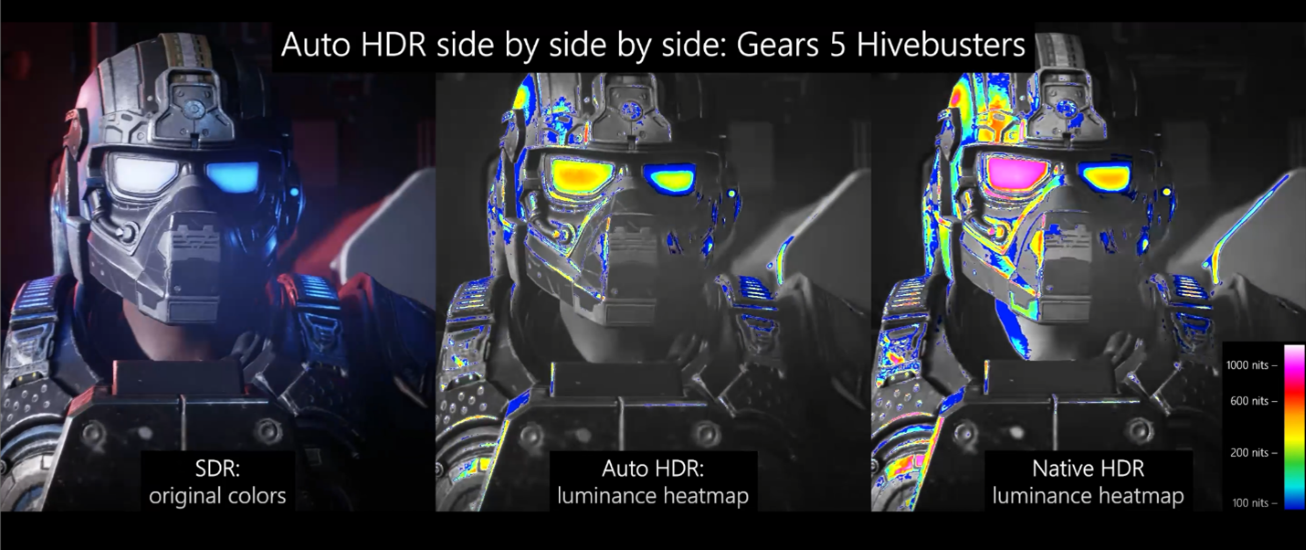
Let’s take a look at a visual example of how SDR, Auto HDR and native HDR implementations compare. Gears 5 has a fantastic mastered-for-HDR native implementation which makes it a perfect candidate for demonstration purposes showing that while native, game-studio implemented HDR is the best quality experience, for games that don’t have a native implementation, Auto HDR still brings you a vastly improved experience over regular SDR.
The left side is running in SDR, the middle running in Auto HDR, and the right side running in Gears 5’s amazing native HDR. Grayscale is used to represent all the areas of the scene which can be fully represented by traditional SDR displays while the rainbow colors show areas which are only displayable on HDR capable displays.
Notice on the middle and right-side images that the highlights on the goggles and helmet show an increased amount of detail. HDR and Auto HDR are not just about boosting brightness but really about emphasizing the details in a scene leveraging the increased range: darkening shadows and illuminating highlights. Looking at Auto HDR and native HDR, you can see the similarities in how the details in the shadows and highlights are much improved using luminance ranges beyond SDR. SDR simply doesn’t have the ability to show the same range of color and luminance the way native HDR and Auto HDR can.
How to Enable Auto HDR
Getting the Right Hardware
From a PC hardware perspective, if you have an HDR monitor equipped PC, then you’re good to go! If you’re looking to get an HDR monitor to try Auto HDR, we strongly recommend you acquire one that is HDR certified.
Joining the Windows Insider Program
Auto HDR for PC is currently a preview feature only available in the Windows Insider Program (Dev Channel). To experience this feature now, you’ll want to click here to join and get access to build 21337 or above.
Global Feature Toggle
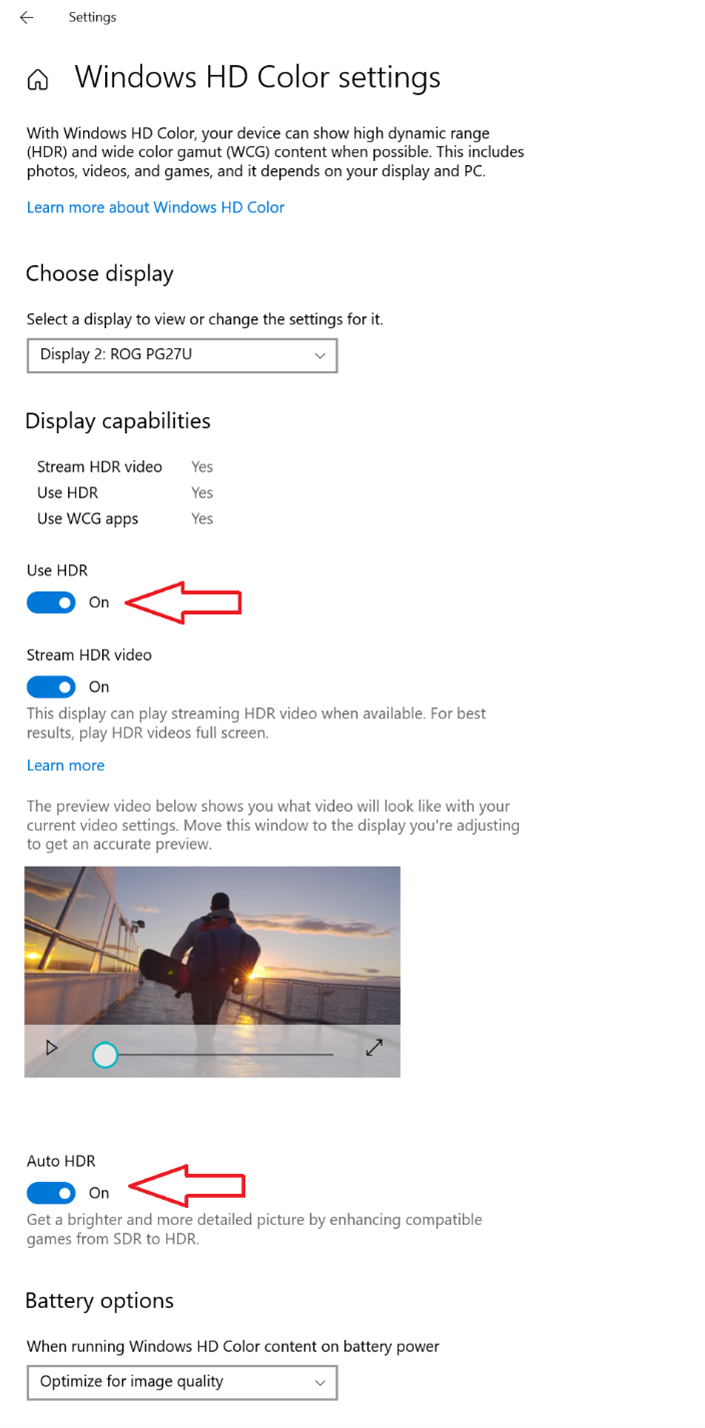
Once part of the Insider Program (Dev Channel), if your PC monitor is already configured to use HDR, you will automatically receive the Auto HDR PC gaming experience. Otherwise, to explicitly enable/disable Auto HDR, look no further than the Windows HD Color Settings page.
nabling
- Open Settings then go to System->Display
- Click the Windows HD Color Settings link
- Scroll down and make sure that the Use HDR toggle is On
- Keep scrolling and you will find the Auto HDR toggle. Flip this to On as well and that’s it. It’s that simple.
Disabling
- Open Settings then go to System->Display
- Click the Windows HD Color Settings link
- Scroll down and you will find the Auto HDR toggle. Flip this to Off.
Splitscreen mode!
Want to see how awesome your 1000 nit HDR monitor looks when displaying Auto HDR content? Well, we have a cool little “only for development and evaluation” secret feature for you! You can enable a splitscreen mode where the left side shows the original SDR content and the right side shows the Auto HDR upgraded content.
This is only for advanced users but if you want to give it a go, here’s how:
- Open an admin command prompt
- To enable splitscreen, run the following command:
reg add HKLMSYSTEMCurrentControlSetControlGraphicsDrivers /v AutoHDR.ScreenSplit /t REG_DWORD /d 1
- To disable splitscreen, run the following command:
reg delete HKLMSYSTEMCurrentControlSetControlGraphicsDrivers /v AutoHDR.ScreenSplit /f
A life-long and avid gamer, William D'Angelo was first introduced to VGChartz in 2007. After years of supporting the site, he was brought on in 2010 as a junior analyst, working his way up to lead analyst in 2012. He has expanded his involvement in the gaming community by producing content on his own YouTube channel and Twitch channel dedicated to gaming Let's Plays and tutorials. You can contact the author at wdangelo@vgchartz.com or on Twitter @TrunksWD.